
Install Crazy Craft Guide for a Wild Modded Minecraft Adventure
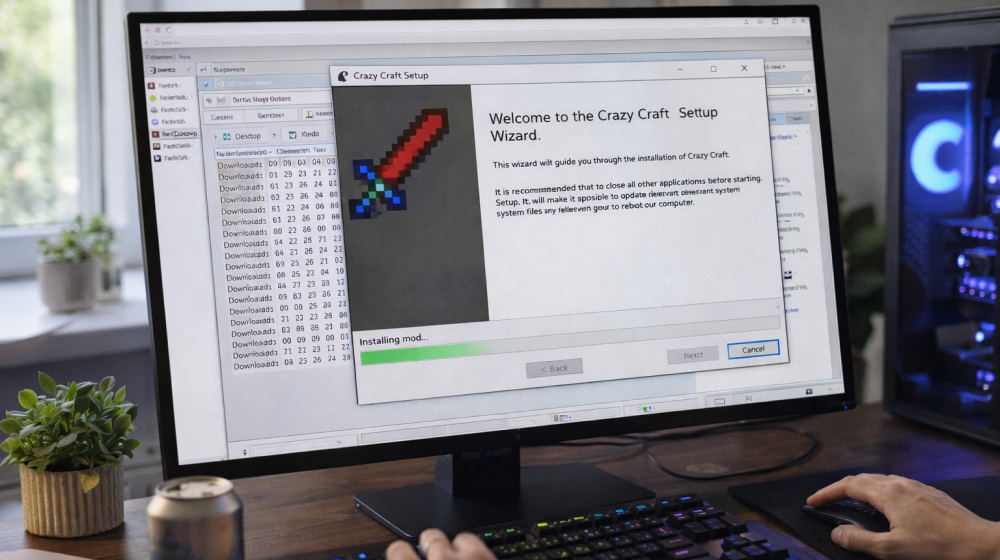
Download Crazy Craft Mod for Free
Get NowCrazy Craft is one of those modpacks that turns ordinary Minecraft sessions into unpredictable stories new mobs, chaotic biomes, surprising loot, and plenty of “how did that happen?” moments. This guide walks you through a clean, reliable installation process, plus practical fixes for common issues so you can spend more time playing and less time troubleshooting.
Before You Start: Quick Checklist
- Confirm your Minecraft version matches the modpack requirements.
- Use a 64-bit operating system and a 64-bit Java runtime when applicable.
- Make sure you have enough RAM (8 GB system memory recommended; more helps).
- Back up worlds you care about before changing modded setups.
To reduce conflicts, it helps to keep separate “profiles” for different modpacks, especially if you switch between vanilla and heavily modded instances. For a stable baseline, you can safely install Crazy Craft on a fresh profile to avoid leftover configs and mismatched libraries.
Choose Your Installation Method
Most players use a dedicated modpack launcher because it handles dependencies, versions, and folder structure for you. Manual installation is possible, but it’s easier to make small mistakes like mixing Forge versions, misplacing mods, or forgetting a required library.
- Launcher method (recommended): Best for quick setup and easy updates.
- Manual method: Useful if you want full control or need to troubleshoot deeply.
If you prefer the streamlined route, you’ll typically download and install Crazy Craft using a trusted launcher and then create a dedicated instance for it, which keeps your other Minecraft installs neat and separate.
Step-by-Step: Launcher Installation
While different launchers have slightly different buttons, the flow is usually the same: pick the modpack, set memory, launch once to generate files, then tweak settings if needed.
- Open your modpack launcher and sign in (if required).
- Find Crazy Craft in the modpacks catalog or import it from a valid source.
- Create a new instance and name it clearly (example: “Crazy Craft Survival”).
- Allocate RAM (start with 4–6 GB for many systems; increase if you have stutters).
- Launch the instance, then wait for the first run to finish setting up configs.
When you see the first successful main menu load, your Crazy Craft install is effectively complete, and you can move on to fine-tuning performance and controls.
Manual Installation (Advanced)
Manual setup can be rewarding if you like understanding how modded Minecraft is structured. The key is matching versions: Minecraft version, Forge (or the required mod loader), and the modpack’s exact mod list.
For manual setups, you’ll usually install Crazy Craft mod components by placing the correct files into the right directories, and then launching through the matching loader profile with a clean, dedicated game folder.
Tip: If something crashes instantly, don’t guess open the crash report or latest log and look for the first “Caused by” line. It often points directly to a missing dependency or a version mismatch.
Memory and Performance Settings That Actually Help
Crazy Craft can be demanding, especially during world generation or in crowded areas. A few adjustments can improve stability without sacrificing fun.
- Allocate enough RAM: Too little causes freezes; too much can also hurt performance.
- Lower view distance: Start at 8–12 and increase only if your FPS is stable.
- Reduce particles: Helpful during intense combat or chaotic mob events.
- Use fullscreen optimizations carefully: Some systems run better in borderless windowed mode.
If you’re experimenting on a secondary machine or a restricted environment, some users look for ways to install Crazy Craft for free through legitimate sources and launchers that do not require extra paid tools beyond owning Minecraft.
Common Problems and Fixes
Most issues fall into a few categories: wrong Java version, incorrect loader version, insufficient RAM, or corrupted downloads.
| Problem | Likely Cause | Fix |
|---|---|---|
| Crashes on launch | Version mismatch (Minecraft/Forge/Java) | Verify the exact required versions and reinstall the matching loader |
| Stuttering or long freezes | Not enough RAM or heavy world gen | Increase allocated RAM moderately and lower view distance |
| Missing textures/items | Incomplete mod download | Re-download the instance and avoid interrupting the setup |
| Can’t join a server | Client/server mod list differs | Match the server’s pack version exactly and relaunch |
If you want a simple sanity check, ensure your launcher path has enough disk space and that your instance folder isn’t synced by aggressive cloud tools that may lock files mid-launch.
World Setup Tips for First Launch
Crazy Craft worlds can generate lots of structures and unusual mobs, so first-time creation may take longer than vanilla. Once you load in, give it a minute or two before sprinting far away. This lets chunks stabilize.
- Create a new world with a memorable name and keep cheats off unless you’re testing.
- Consider starting on normal difficulty until you learn the pack’s combat rhythm.
- Set a quick base near spawn, because random events can get intense fast.
Some players interpret the phrase Crazy Craft for free install as a reminder to avoid shady mirrors and instead use official launchers and reputable modpack platforms whenever possible.
Keeping Your Modpack Updated Without Breaking Saves
Updates can add content, fix bugs, or change balance, but they may also alter world generation. The safest routine is:
- Back up your saves and screenshots folder.
- Duplicate your instance (many launchers have a “copy profile” option).
- Update the duplicate first and test it for 10–15 minutes.
- Only then move your main save forward if everything is stable.
When you see instructions like Crazy Craft download and install in launcher notes, treat that as a cue to follow the platform’s built-in import/update flow rather than mixing files from multiple sources.
Final Safety Notes
Modpacks can be heavy on system resources, so keep your graphics drivers updated and close memory-hungry apps before launching. If you run into repeated crashes, delete the instance and reinstall cleanly rather than stacking “quick fixes” that create new conflicts. With a clean setup and sensible memory settings, you’ll be ready to explore the chaos, tame the surprises, and build something impressive in the middle of the madness.